
Mind Map
Create, edit, and organize mind maps with expandable nodes, drag-and-drop rearranging, and export options.
About Mind Map
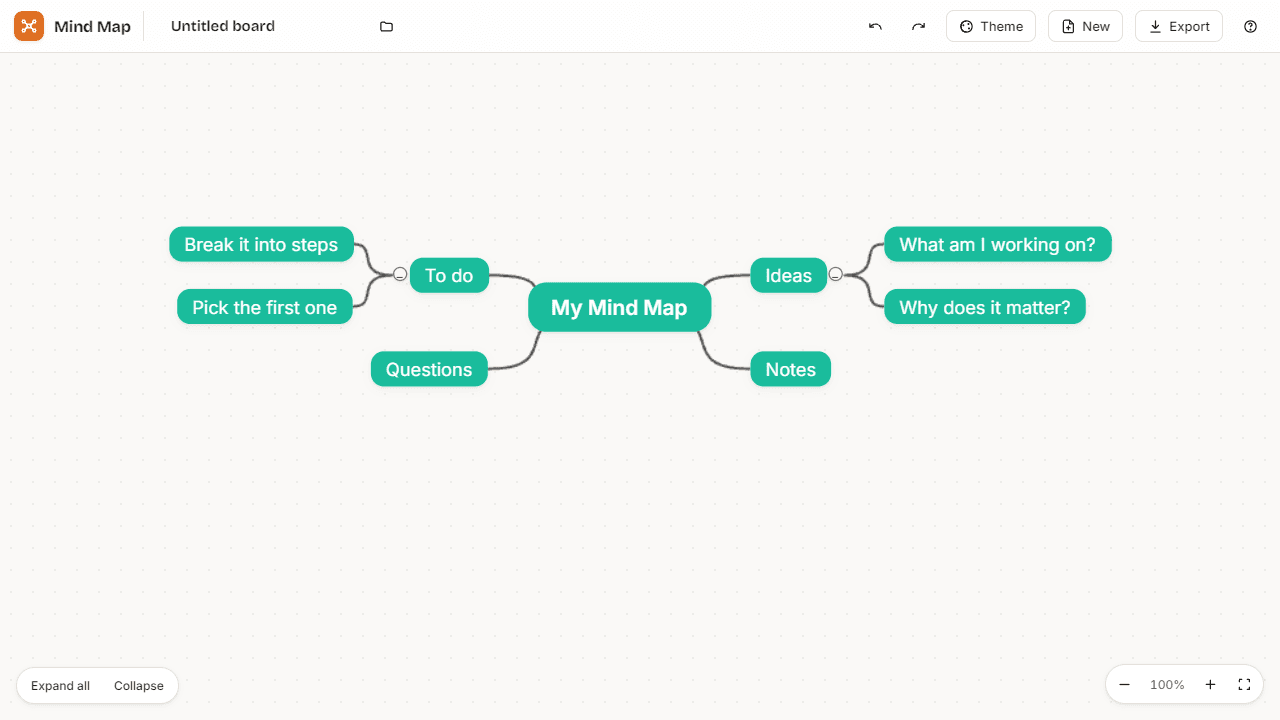
Start with a blank canvas, add a central idea, then branch outward — Mind Map lets you build visual diagrams by creating nodes, expanding them into sub-topics, and dragging branches wherever they make sense. It's the kind of tool that turns a jumble of half-formed thoughts into a structure you can actually work from.
The interface stays out of your way. Click to add, drag to rearrange, and collapse branches when a section gets too dense to think around. When you're done, export options mean your map doesn't have to live and die inside the app. It fits naturally alongside other productivity tools for planning projects, prepping for meetings, or untangling a complex decision. If your map eventually needs to become a task list, Task Manager is a logical next stop.
Mind Map works best on a larger screen — a mouse or trackpad gives you much finer control over node placement than touch alone.
Look inside
How to use
Brainstorm and organize ideas with a live-syncing mind map. **Saving works automatically.** • Every edit is synced to your Launch Arcade account — no save button needed. • The Synced chip in the top bar tells you when changes are safe. • Your work is also mirrored locally so it survives briefly offline. **Multiple boards.** • Click the folder icon next to the board name to see all your boards. • Use New in the top bar to start a fresh board (the old one stays in the list). • Rename, open, and delete boards from the folder dialog. **Building your map.** • Click any node to open the floating action panel. • Add child (or press Tab), Rename (or press F2), Move up/down, Collapse, Delete. • Press Enter to add a sibling; press Delete to remove the selected node. • Drag nodes to reparent them. **Style.** • Pick a color theme from the Theme menu in the top bar. • Tap a color swatch in the node panel to tint a single node. • Use the Image button to add a picture to a node (images are auto-compressed to keep the board light). **Export.** • The Export menu downloads a board as JSON (.jm) or FreeMind (.mm), or grabs a PNG screenshot. • Import the same formats to bring an existing mind map in as a new board. **Undo / redo.** • Use the ↶ / ↷ buttons in the top bar, or Ctrl+Z / Ctrl+Shift+Z. • Up to the last 50 edits are remembered.
Reviews
More from Productivity

A minimal, single-page Markdown editor with instant live preview. Toggle between editor and preview on mobile, or use the side-by-side layout on desktop.


