
Step Sequencer
FL-Studio-style step sequencer for drum samples with volume control and mute toggles.
About Step Sequencer
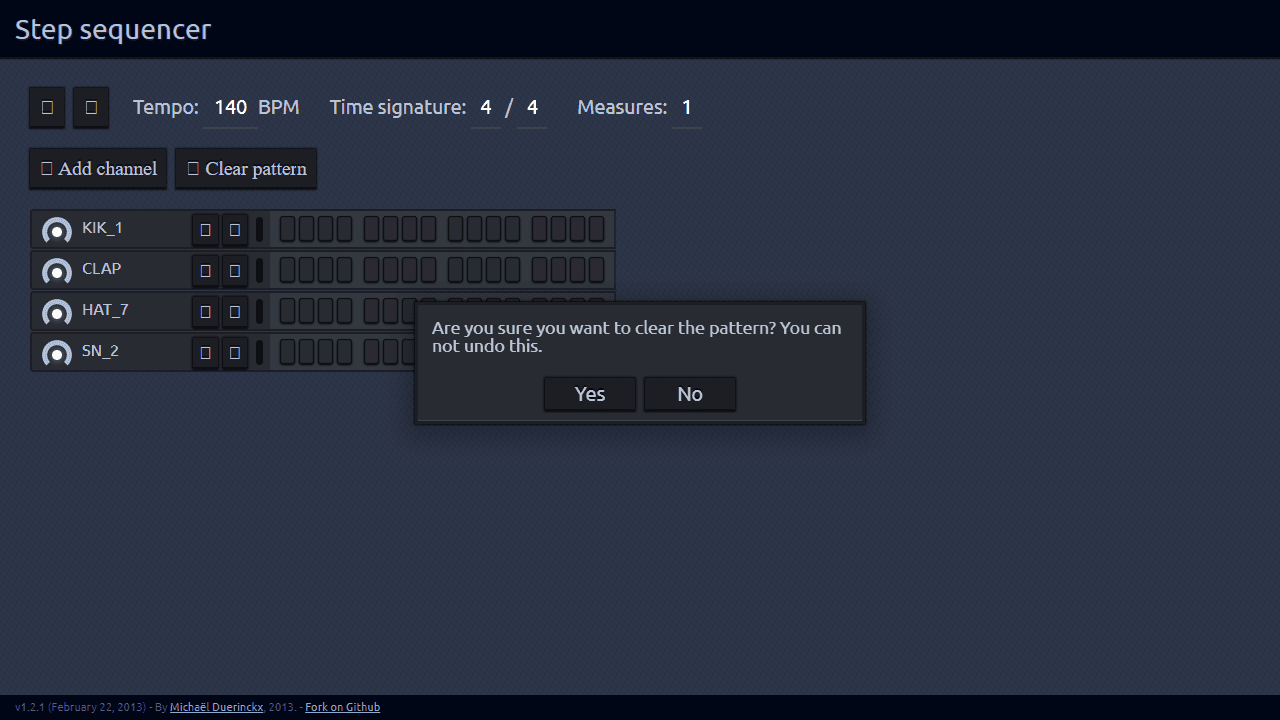
You get a 16-step grid, a handful of drum samples, and the job of making them hit right. Click cells to toggle beats on or off, nudge the per-channel volume sliders to balance kick against hi-hat, and mute tracks in real time to hear what's carrying the groove — and what's just clutter. It's the same basic workflow you'd find in FL Studio's step sequencer, shrunk down to the browser with no installation required.
This kind of hands-on beat building is a solid entry point into creative music tools, especially if you've always been curious about drum programming but found full DAWs overwhelming. If you want something with a slightly different flavor, Pocket Operator puts a Teenage Engineering-style drum machine in your browser and lets you load custom sounds.
Step Sequencer works best with headphones — the low end of the kick and bass samples comes through much more clearly, and you'll catch timing details that laptop speakers tend to swallow.
Look inside
How to use
Create drum beats and electronic music patterns using a grid-based sequencer. • Click grid squares to place drum hits and sounds - each row represents a different instrument • Press the play button to start your sequence looping • Use the tempo controls to adjust playback speed • Click track names to change instrument sounds from the sample library • Add new tracks using the track manager to layer more instruments • Each column represents a beat - typically 16 steps make one complete pattern • Volume and pan knobs let you mix each track's sound level and stereo position • Click and drag across multiple grid squares to quickly fill in patterns • Use the stop button to pause playback • Experiment with different combinations - kick drums on beats 1 and 5, snares on 3 and 7, hi-hats on every other step • Save your patterns by bookmarking or copying the URL The goal is to create rhythmic loops by strategically placing sounds across the timeline grid.
Reviews
No written reviews yet. Be the first!
More from Creative

A casual chiptune loop maker. Tap cells, pick a vibe, share remixable 16-step loops in under a minute.
by Launch Arcade


